5 CSS Concepts You Need to Understand Before Using AI for Squarespace
Using AI to customize your Squarespace website sounds amazing until the code doesn’t work and you realize you have no idea how to fix it. This guide is for Squarespace users who want to harness AI tools effectively while avoiding frustrating, time-sapping broken code.
Before you start copying and pasting AI-generated CSS into your site, you need a solid foundation in core CSS concepts. We'll cover what CSS is and where to paste it inside of Squarespace, the basic structure of CSS, how to master CSS selectors so you can target exactly the right elements, and safe testing methods that protect your live site from breaking. You'll also discover debugging techniques that keep your customizations clean and maintainable.
When you understand these fundamentals, AI becomes your creative partner instead of a source of frustration and broken code.

1) CSS in Squarespace: What It Does, What It Doesn’t, and How to Use It Safely
What CSS Actually Controls in Squarespace (Design, Layout & Styling)
CSS is your secret weapon for making your Squarespace site look exactly how you envision it. When you're working with Squarespace's built-in design options and find yourself thinking "I wish I could just move that element a little to the right" or "If only I could change that font size on mobile," that's where CSS comes to the rescue.
You'll use CSS to fine-tune spacing between elements, adjust colors for particular elements, modify fonts and typography in specific blocks, control how elements behave on mobile devices, and create custom layouts that go beyond template limitations. CSS gives you the power to override Squarespace's default styling decisions and make your site truly yours.
Think of CSS as the makeup artist for your website. While Squarespace provides the basic structure and design foundation, CSS lets you add those finishing touches that make your site stand out from the thousands of other sites using the same layouts.
CSS Limitations: What It Won’t Fix on Your Squarespace Site
CSS won't add new functionality to your Squarespace site. You can't use it to create contact forms, set up e-commerce features, or build interactive elements like calculators or booking systems. CSS is purely about appearance and layout - it's not a programming language that creates new features.
You also can't use CSS to access Squarespace's backend systems or modify how forms process data. It won't help you integrate third-party services, create user accounts, or manage your site's SEO settings. CSS is visual styling only.
Don't expect CSS to fix fundamental template limitations either. While it can work around many design constraints, some changes require template-level modifications that CSS simply can't achieve. If you're trying to completely restructure your site's navigation or change core functionality, you're looking at the wrong tool.
How to Add CSS in Squarespace: The Exact Places to Paste Code
Your CSS lives in the Custom CSS panel, which you'll find under Pages > Custom Code > Custom CSS in your Squarespace dashboard. You can also use a “/” on your keyboard to bring up a search function to search for Custom CSS. This is where you'll paste all your custom code.
You can also add CSS to individual pages in the Advanced tab or in Code Blocks, but this approach gets messy quickly and makes your code harder to manage. Stick with the main Custom CSS panel for site-wide changes.
For advanced users, you might inject CSS to individual pages using Code Blocks or Code Injection areas (Settings > Advanced > Code Injection), but this approach gets messy quickly and makes your code harder to manage. The Custom CSS panel should handle 99% of your styling needs, so stick with the main Custom CSS panel for site-wide changes.

2) Understanding Basic CSS Structure: Selectors, Properties & Syntax Explained
How CSS Code Is Structured (Brackets, Rules & Formatting)
CSS follows a specific bracket structure that keeps everything organized and tells the browser where each rule begins and ends. Here's the basic anatomy:
selector {
    property: value;
    property: value;
}
The opening curly bracket { comes right after your selector, and the closing bracket } marks the end of that rule. Inside those brackets, you list your properties and values, with each property-value pair ending in a semicolon ;. This semicolon is crucial - forget it, and your CSS might break.
You can stack multiple properties within the same set of brackets:
.my-button {
    background-color: #3498db;
    color: white;
    padding: 10px 20px;
    border-radius: 5px;
}
In fact, it is best practice to keep properties for the same selector together so you don’t end up with duplicates.
Proper indentation makes your code readable, especially when you're dealing with multiple lines of code. Keep your properties indented consistently, and always close your brackets. Missing brackets are one of the most common reasons CSS stops working, so double-check your opening and closing brackets match up perfectly.
CSS Selectors Explained: How CSS Targets Elements on Your Site
Your CSS selector is what tells the browser exactly which element you want to style. Think of it as your targeting system - you're pointing at specific parts of your Squarespace page and saying "change this!" You can target elements by their HTML tag (like h1 for headings), by class names (.my-custom-class), or by IDs (#blockID). The selector comes first in your CSS rule and determines where your styling will be applied.
We will dive more into this in the next section because this is the biggest source of error for AI Generated CSS.
Understanding CSS Properties (The Part That Actually Changes Design)
Properties are where the magic happens - they're the actual styling instructions you're giving to your selected elements. Each property controls a specific aspect of how your element looks or behaves. You'll work with properties like color for text color, font-size for text size, background-color for backgrounds, and margin for spacing around elements.
Here are some essential properties you'll use frequently:
Typography: font-family, font-size, font-weight, line-height
Colors: color, background-color, border-color
Spacing: margin, padding, width, height
Layout: display, position, float, text-align
Effects: border, box-shadow, opacity, transform
Each property requires a specific type of value. Colors can be hex codes (#ffffff), RGB values, or color names. Sizes can be pixels (px), percentages (%), or relative units (em, rem). Getting familiar with what values each property accepts will save you tons of troubleshooting time.
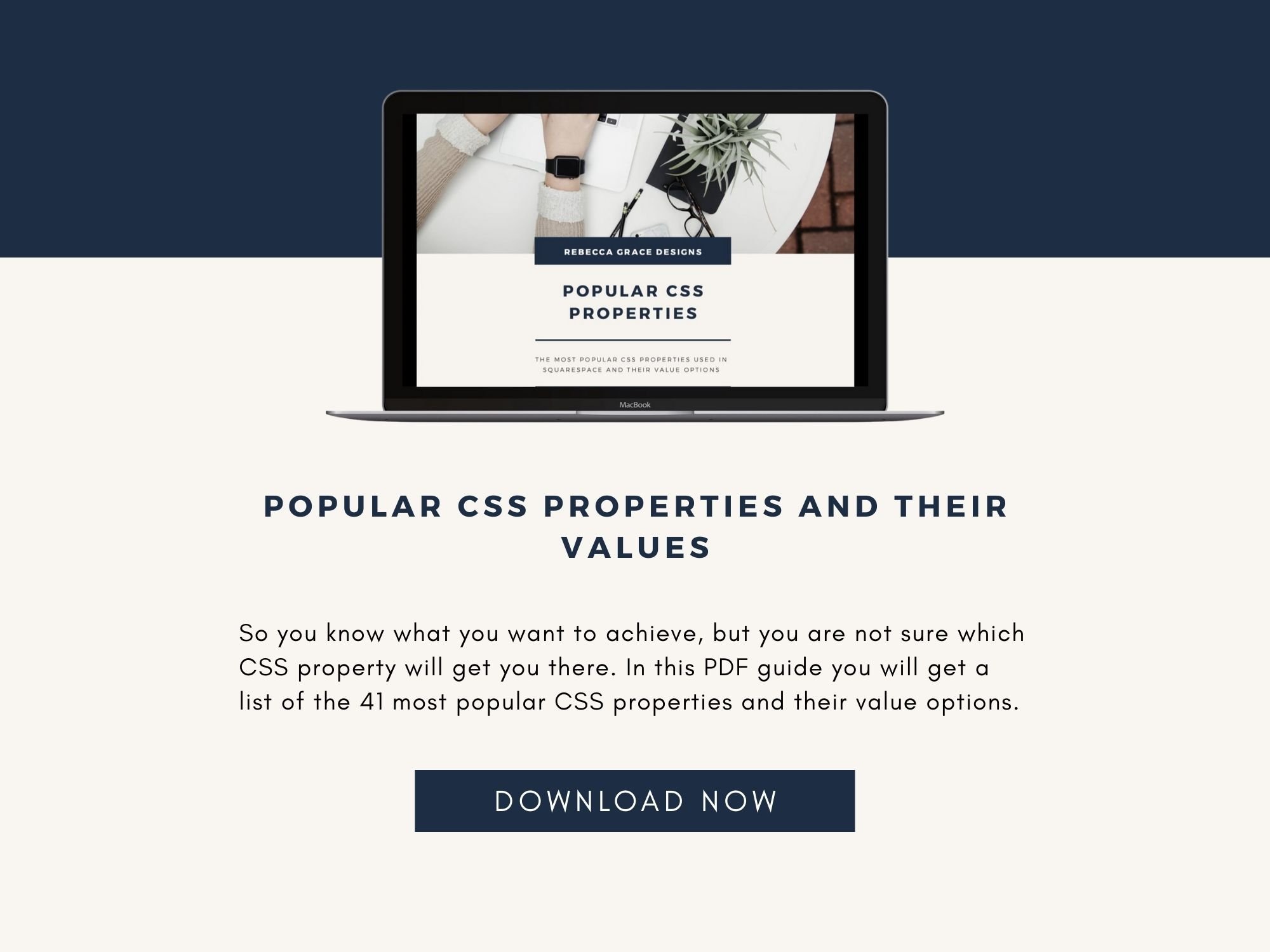
As luck would have it, I have a FREE handy guide for you that lists the 41 most popular CSS properties and their value options. Click the link below to get yourself a copy!
3) Mastering CSS Selectors: Target Elements Precisely in Squarespace
As mentioned above, CSS selectors are the foundation of targeting specific elements on your Squarespace website. Think of selectors as your GPS system for finding exactly what you want to style. Without them, you'd be trying to change colors, fonts, or layouts on your entire site when you only want to modify one small section.
When you write CSS, selectors tell the browser which HTML elements should receive your styling rules. You can target everything from a single button to all the headings on your page. The power lies in their precision - you can be as broad or as specific as your design requires.
How you target an element, changes from platform to platform. So, code written for Wordpress, won’t necessarily work In Squarespace. Unless your AI Tool is trained in Squarespace, it tends to get this part of the code wrong. So, learning how to select elements in Squarespace can be a massive help when debugging AI Generated Code.
Using Class and ID Selectors to Target Elements in Squarespace
Class selectors start with a dot (.) and target elements that share the same class attribute. Whereas ID selectors use the hash symbol (#) and target unique elements. The trick is to pick the class name or ID that matches only the elements you want to change. For example, if you want to add a shadow to a particular image on your about page, you would use the Block Id for that element. But if you wanted to add a shadow to every image on your site, you would use a class selector.
You can see the selectors by using Chrome's Developer Tools. To use this tool, open your Squarespace site in Chrome, right-click on the element you want to target and choose inspect. The Developer Tools will open and you can search through the code to find the selector you need.
Choosing the right selector takes practice and experience. Squarespace uses consistent naming conventions, so once you learn the pattern, finding the right selectors becomes second nature.
Using CSS Pseudo-Classes for Hover, Focus & Interactive Effects
Pseudo-classes add dynamic behavior to your Squarespace elements without requiring JavaScript. They respond to user interactions like hovering, clicking, or focusing on elements. The most common pseudo-classes you'll use are :hover, :focus, :active, and :visited.
Your hover effects can transform a static website into an engaging experience. For example, you can add :hover to buttons so they change color as visitors move their cursor over them.
Position-based pseudo-classes like :first-child, :last-child, and :nth-child() help you style specific items in lists or grids. If you want to style only the first element in a list :first-child makes it simple without adding extra classes.
4) How to Test CSS in Squarespace Without Breaking Your Site
Testing your CSS code before implementing it on your live Squarespace site is absolutely critical for maintaining a professional web presence. When you skip the testing phase, you're essentially gambling with your website's appearance across different devices and browsers.
Your visitors expect a seamless experience, and untested code can create visual inconsistencies, or worse - make parts of your site completely unusable. You might think your code looks perfect on your desktop Chrome browser, but what happens when someone visits from an iPhone using Safari? Without proper testing, you won't know until it's too late.
For a comprehensive guide on testing your AI-generated safely, check out our detailed walkthrough at How to Safely Test AI-Generated Code in Squarespace Without Breaking Your Site. This resource covers step-by-step methods for creating safe testing environments and implementing strategies that let you gradually roll out AI code changes while maintaining full control over your site's performance.
5) Debugging CSS in Squarespace: How I Fix Issues and Keep Code Organized
When your CSS isn't working as expected, you need a systematic approach to track down the problem. Start by looking in the Custom CSS Panel to see if a red error code is present. The Custom CSS Panel is pretty good at picking up any errors in the structure. Make sure that you haven’t forgotten any brackets or semi-colons.
Then check the selector. Locate the element you're trying to style by right-clicking on it and selecting "Inspect." This highlights the element in the HTML structure and shows you all the CSS rules currently applied to it. Look for your custom CSS in the Styles panel - if it's not there, your selector might be wrong or too weak.
Pay attention to any CSS rules that are crossed out - these indicate that other styles are overriding yours. Squarespace uses specific CSS classes and IDs that often have higher specificity than your custom selectors. When you see this happening, you'll need to make your selectors more specific or use !important as a last resort.
Test your CSS changes directly in the Developer Tools by editing the styles panel. This lets you experiment without constantly switching between your code editor and the live site. Once you find what works, copy the successful code back to your Custom CSS panel.
If you have the right selector, but the code still isn’t working, then look through the properties to see if there are any typos or properties missing.
Keep Your CSS Organized: Commenting Strategies for Squarespace Designers
Your future self will thank you for leaving clear comments in your CSS. When you return to modify your site months later, you'll have forgotten why you wrote certain rules or what specific elements they target. Comments act as breadcrumbs leading you back to your original thinking.
Group related CSS rules together and separate major sections with clear dividers. This makes scanning through your code much faster when you need to make updates. Always include the date when you added significant changes - this helps you track what's new versus what's been working for months.
Keep your CSS organized by following a consistent structure: general styles first, then header elements, main content areas, sidebars, and finally footer elements. This logical flow makes your code predictable and easier to navigate.
Clean CSS = Fewer Problems: Tips for Long-Term Site Health
Maintaining clean, organized CSS becomes critical as your Squarespace site grows. Messy code creates problems down the line - conflicting rules, redundant styles, and debugging nightmares that waste your time.
Regular code cleanup prevents your Custom CSS panel from becoming an overwhelming wall of text. Remove duplicate selectors, consolidate similar rules, and delete any experimental code that didn't make it to your final design.
For a comprehensive guide on keeping your Squarespace CSS clean and manageable, check out my detailed walkthrough 5 Steps to Clean Up the Code on Your Squarespace Website. This resource covers organization techniques, commenting strategies, and code maintenance that will save you hours of troubleshooting later.
Remember, clean code isn't just about aesthetics - it directly impacts your site's performance and your ability to make quick updates when needed.
You’re Ready to Start Using AI-Generated CSS in Squarespace
Understanding these five CSS concepts will transform how you work with AI tools on your Squarespace site. When you know how to target specific elements with selectors, structure your code properly, and test changes safely, you'll be able to communicate exactly what you want to your AI assistant. This knowledge also helps you spot when something goes wrong and fix it quickly, rather than ending up with broken styling that you can't troubleshoot.
Start practicing these fundamentals on a test page or staging site before diving into major design changes. The time you spend learning proper CSS structure and debugging techniques now will save you hours of frustration later. Your AI-generated code will work better, your site will look more professional, and you'll actually understand what's happening behind the scenes instead of just hoping for the best.
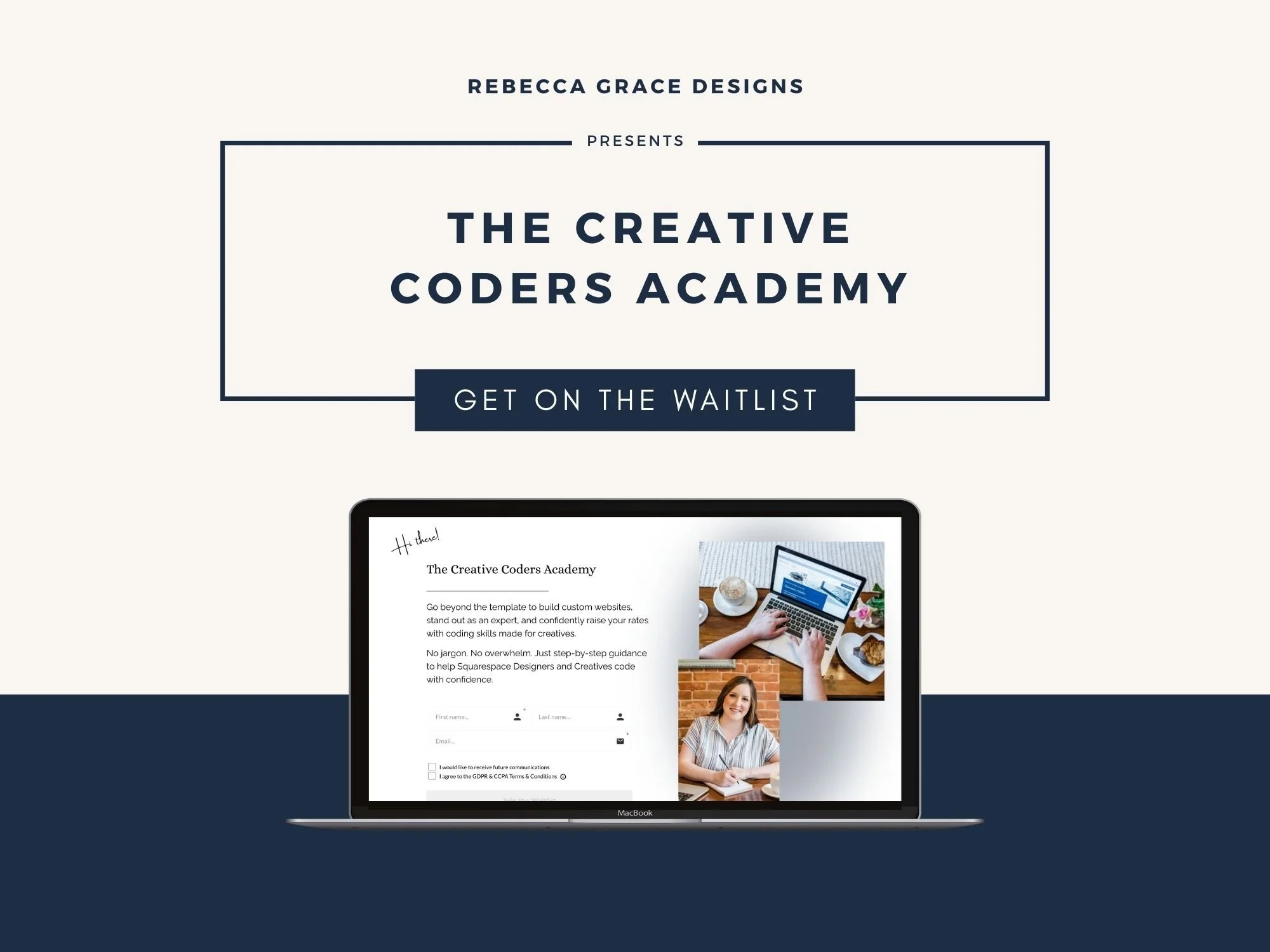
If you are interested in diving deeper into learning code for Squarespace, get on the Waitlist for The Creative Coders Academy. This self-paced online course is for Squarespace designers who are tired of hitting platform limits and want to confidently offer custom-coded solutions (without relying on a developer).
You will learn how to write strategic, lightweight code that elevates your designs, expands what’s possible on Squarespace, and helps you charge premium rates.